 savingsspot.co.uk
 If you have ever spent a chilly Sunday evening on the sofa, clutching a mug of tea and scouring the internet for a summer getaway to Majorca or a long weekend in the Peak District, you have almost certainly opened a second browser tab and typed the words: “Booking.com discount code”.
What follows is an almost universal digital frustration. You click on a voucher website, copy a generic code like ‘SUMMER10’ or ‘STAYSAVE20’, return to your checkout screen, and are met with the dreaded red text: “This promo code is invalid or has expired.”
There is a very specific reason this happens. Unlike digital fashion retailers or food delivery giants, Booking.com relies extremely heavily on a closed, algorithmic pricing infrastructure rather than open-field voucher codes. However, a permanent, guaranteed discount of at least 10% exists for almost every major hotel on the platform—provided you know how to trigger their mobile-only gateway.
The ‘Promo Code’ Illusion: How the Platform Actually Works
To master the system, UK holidaymakers first have to understand the business model of an Online Travel Agency (OTA). When you book a boutique hotel in Edinburgh or a villa in the Algarve through Booking.com, the platform takes a commission from the property owner—typically ranging between 15% and 25%.
Because the platform’s primary goal is to keep you inside their ecosystem rather than losing you to a competitor like Expedia or a direct hotel website, they do not issue wide-release promotional codes. If they did, their partner hotels would revolt over the undercut margins.
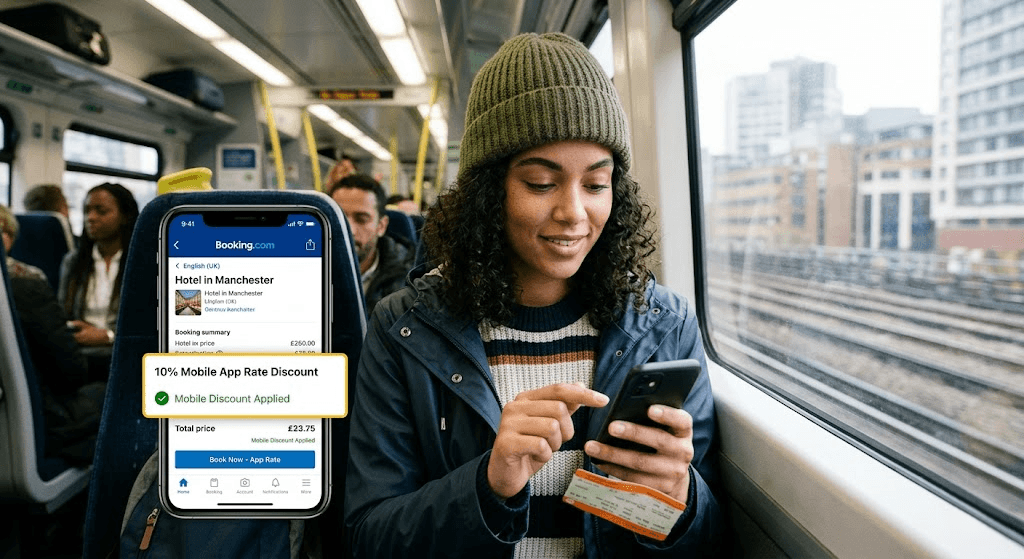
Instead, they created the Mobile-Only Rate. This is an opt-in programme for hoteliers designed to capture the fast-growing demographic of smartphone bookers. Properties agree to shave 10% off their standard desktop retail price; in exchange, Booking.com pushes their property higher up the default search algorithm for mobile users. It is an automated discount badge, rather than a text code you have to remember to paste at checkout.
How to Trigger the Native 10% Mobile Discount
Accessing this lower pricing tier requires you to change the digital environment from which you are viewing the website. There are two primary methods to achieve this.
Method 1: The Official Application Gateway
The most straightforward route to the discount is downloading the dedicated Booking.com app via the Apple App Store or Google Play Store. Once logged into your profile, follow these steps to verify the discount is active:
- Set your destination and dates as normal.
- On the results page, look at the filter bar and scroll down to the “Deals” section.
- Toggle the switch labelled Mobile-only price.
- Scan the property cards. You are looking for a distinct green or bright orange badge sitting directly above the nightly rate that reads: “Mobile-only price”.
When you click through to the room selection, the platform will display the original price with a clear strike-through line, placing the discounted figure next to it. Because this happens at the point of search, the final checkout screen will require no manual code entry.
Method 2: The Desktop ‘Developer Tools’ Hack
What if you are booking a complex, multi-stop family itinerary across Italy and desperately need the screen real estate of your desktop monitor to look at maps, but still want the 10% mobile price? You can force the desktop browser to trick the Booking.com servers into thinking you are on a smartphone.
If you are using Google Chrome or Microsoft Edge on a Windows PC or Mac:
- Navigate to the standard Booking.com property page on your desktop.
- Right-click anywhere on the blank white space of the page and select Inspect (or press F12 on your keyboard).
- A complex panel of code will open on the right-hand side. Near the top-left of this code panel, look for a small icon that resembles a tablet sitting next to a mobile phone (the keyboard shortcut is Ctrl + Shift + M on Windows or Cmd + Shift + M on Mac).
- Your main screen will instantly shrink into a vertical mobile layout. At the very top, use the drop-down menu to select a device profile, such as ‘iPhone 12’ or ‘Samsung Galaxy S20’.
- Crucial step: Hit the refresh button (F5) on your browser.
The website will reload, re-querying the database under a mobile “User-Agent”. The desktop site will drop its standard rates, the green mobile discount badges will appear, and you can complete the checkout on your large screen whilst paying the smartphone tariff.
The Masterclass: Stacking Mobile Rates with Genius Tiers
The true secret to lowering your holiday costs lies in “stacking”—the practice of layering multiple distinct platform offers on top of one another. The Booking.com Mobile Rate has a unique programmatic feature: it does not cancel out the Genius Loyalty discount.
Booking.com’s loyalty scheme, ‘Genius’, is broken into three lifetime tiers achieved by completing a set number of stays within a two-year rolling window:
- Genius Level 1: Requires 0 to 2 stays. Grants a base 10% discount on participating properties.
- Genius Level 2: Requires 5 stays. Grants a 15% discount, plus complimentary room upgrades and free breakfasts on select rooms.
- Genius Level 3: Requires 15 stays. Grants up to a 20% discount, priority customer support, and all lower-tier perks.
When a UK user with a Genius Level 2 account opens the mobile app, the platform’s math stacks the promotions sequentially. If a hotel room in Paris is listed at a base rate of £200 per night, the Genius Level 2 discount removes 15%, bringing the price down to £170. The Mobile Rate then identifies the device, applying a further 10% reduction to the new figure, dropping the final payable cost to £153.
By simply using an existing account inside the mobile framework, a £200 room becomes a £153 room without a single promotional code being typed.
The Avios ‘Triple Stack’: The Ultimate UK Travel Hack
For British travellers who collect British Airways Avios, there is an advanced method to turn the Mobile Discount into a triple-earning opportunity. This requires careful execution of your digital “click-path”.
Most Avios collectors know they can click through the British Airways Executive Club eStore to earn roughly 6 to 8 Avios for every £1 spent at Booking.com. However, most assume that doing this forces them to use the standard desktop browser, forfeiting the 10% mobile price. This is incorrect.
To secure the Avios, the Genius discount, and the Mobile discount simultaneously, follow this exact sequence on your iPhone or Android device:
- Ensure the official Booking.com app is already downloaded and logged into your account on your phone.
- Open your mobile web browser (Safari or Chrome) and navigate to the British Airways Executive Club shopping portal.
- Log into your BA account, search for Booking.com, and tap the red “Shop Now” button.
- Your phone’s operating system will intercept the web link and ask: “Open in Booking.com App?”
- Tap Yes / Open.
Because you transitioned through the BA gateway, the tracking cookie has been deposited in your active session. Because the native app caught the link, the Mobile Discount badge triggers instantly. You are now securing the lowest possible cash price whilst passively generating hundreds of airline frequent-flyer points.
Spotting the ‘Phantom’ Mobile Discount
As savvier consumers gravitate toward the mobile app, a small percentage of boutique properties have developed a defensive pricing strategy that UK buyers need to watch out for. This is known in the travel trade as the “inflated baseline”.
To maintain their standard profit margins whilst appearing to offer the mandatory 10% mobile perk, an unscrupulous hotelier might raise their standard desktop price from £100 to £111. When the 10% mobile algorithm applies to the £111, the price drops back down to £99.90. The consumer sees a green badge and assumes they have secured a wonderful bargain, when in reality they are paying the fair market baseline.
You can safeguard yourself against this instantly. When looking at an expensive mobile-only rate on your phone, open an “Incognito” or “Private Browsing” window on a separate laptop. Search the exact same hotel, for the exact same dates, on a neutral aggregator like Google Hotels or Trivago. If the neutral aggregator shows a standard market rate identical to your “discounted” mobile app price, the mobile discount is a phantom offer, and you should look at alternative accommodation.
Maximising the UK Checkout Experience
Once you have secured your mobile-only discounted rate, the final step is protecting the transaction against international banking fees. When booking properties outside the UK on the mobile app, Booking.com will frequently offer you the option to “Pay now in GBP (£)” or “Pay at the property in the local currency”.
If you select the option to let Booking.com convert the currency into Pounds Sterling at checkout, they will apply their own internal Dynamic Currency Conversion (DCC) markup, which sits roughly 3% to 5% above the true interbank exchange rate. This can instantly wipe out half the savings you achieved by using the mobile discount.
The golden rule of the mobile checkout: Always opt to pay in the native currency of the country you are visiting (Euros, US Dollars, Thai Baht) and settle the transaction using a specialist zero-foreign-transaction-fee UK debit or credit card, such as those issued by Monzo, Starling Bank, Chase UK, or Halifax Clarity. The bank will perform the back-end conversion at the raw market rate, preserving 100% of your app-generated discount.